
11 minutes
Your employees work from home, on the go, or from a flexible workspace. That’s great. But where is their data right now? On a laptop they manage themselves. On a device that may not have been updated in a year. In an environment over which you, as an organization, have little control.
That is a risk that more and more organizations are becoming aware of, but do not always call by name.
A remote workstation is often seen as a thing of the past—complex, expensive, and cumbersome. But there’s a good reason why major banks, healthcare organizations, and government agencies still opt for it. That reason has less to do with user convenience and more to do with something much more important: control over where your data is stored and who has access to it.
In this article, we explain why a remote workstation might not be as outdated as you think, what the real pros and cons are, and what alternatives you might want to consider. By “remote workstation,” we mean both VDI (Virtual Desktop Infrastructure, where the employee is provided with a full virtual desktop) and SBC (Server-Based Computing, where applications are run centrally and made available over the network). Both approaches keep data and processing in-house. In the rest of this article, we’ll refer to them collectively as “remote workstation.”
What is a remote workplace, and why might it be a smarter choice than you think?
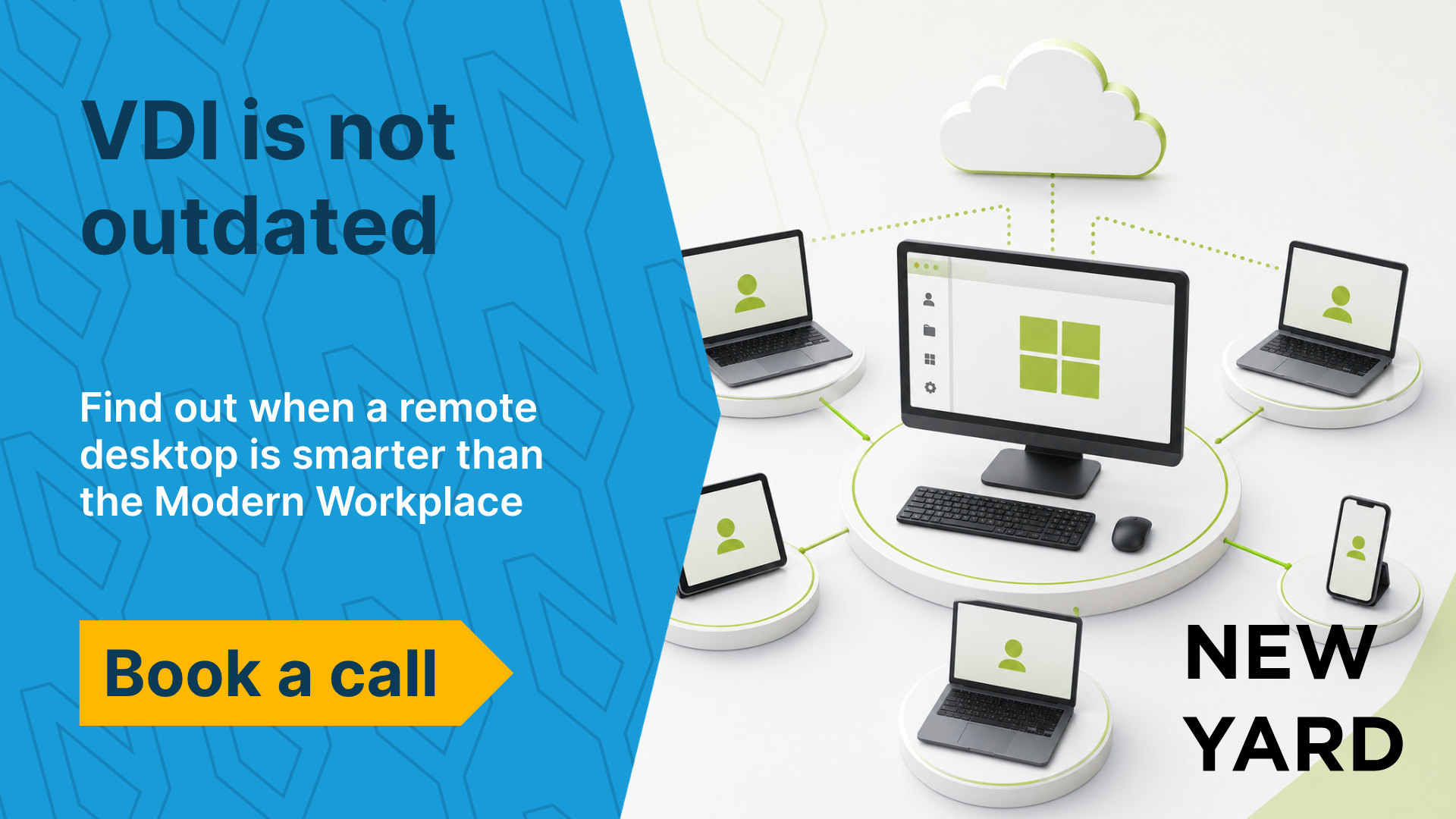
With both VDI and SBC, employees work on a virtual desktop that runs centrally in your data center or private cloud. The difference lies in the architecture: with VDI, each user gets their own virtual machine. With SBC, multiple users share a common server environment. With SBC in particular, it’s also possible to publish specific applications rather than a full desktop. In all cases, the same principle applies: processing and data remain internal. Nothing is stored on the device itself.
A laptop or thin client is a screen with a keyboard. That’s all.
What are the advantages of a remote workstation compared to standard endpoints?
Your data is stored internally, which makes it harder to steal
In a typical workplace, an employee’s laptop contains all sorts of things: documents, emails, passwords stored in the browser, and sometimes even customer data. If that laptop is stolen, lost, or hacked, that data is gone. Or worse: it ends up in the wrong hands.
With a remote workstation, the employee works on a central environment located on the company’s internal network. There is literally nothing stored on the device itself. A stolen laptop is therefore simply a lost piece of hardware—not a data breach.
According to the Verizon Data Breach Investigations Report 2024, theft or loss of equipment remains one of the most common causes of data breaches at small and medium-sized businesses. (Source: https://www.verizon.com/business/resources/reports/dbir/)
Why BitLocker Alone Isn’t Enough: The YellowKey Attack
Many organizations believe they are secure because BitLocker is enabled. The theory goes: if the drive is encrypted and the laptop is stolen, there’s no problem. Reality proves otherwise.
The YellowKey attack demonstrates that an attacker with physical access to a laptop can intercept the BitLocker encryption key without needing login credentials. The entire process takes a few minutes. Afterward, the drive is fully accessible, despite active encryption.
Microsoft has since released a patch that addresses this specific vulnerability. But it shows that the system is not infallible, and that another workaround can always be found. The vulnerability remains: there is data on the endpoint that needs to be protected.
In a remote work environment, there is nothing on the endpoint to decrypt. The attack becomes pointless, not because security is better, but because there is nothing to steal.
Sensitive business data does not belong on an endpoint
Customer contracts, quotes, personnel files, strategic plans: these are the files that leave your organization vulnerable if they end up in the wrong hands. In most organizations, they’re simply stored on an employee’s laptop or in a local OneDrive folder that syncs automatically. As soon as that device is no longer under your control, that data disappears along with it.
A remote workspace provides a structural solution to this problem. Employees work with those files, but the files themselves never leave the internal environment. No copy on the endpoint, no synchronization to a local device. That is exactly why the healthcare, finance, and legal sectors have been choosing this approach for years as the foundation of their workspaces.
All security is centralized, not spread across hundreds of devices
One of the biggest challenges in standard endpoint management is the sheer number of devices. Every laptop is a potential attack surface. You have hundreds of devices that all need to be updated, hundreds of entry points for malware, and hundreds of points that you need to monitor.
With a remote work environment, this problem is much less of an issue. Security is centralized on the server. You apply patches in one place. You install antivirus software in one place. You manage policies in one place. That’s not only simpler, but also significantly more secure.
Furthermore, employees cannot simply install software, connect USB drives, or upload files to a personal cloud unless you explicitly allow it. It is much more difficult to enforce these controls on standard endpoints.
More control over what a user can do and see
With a remote workstation, you decide what a user sees, which applications are available, whether someone is allowed to copy files, whether printing is possible, and whether the clipboard contents can be sent to the local device.
This is particularly relevant in situations where employees work with sensitive customer data, medical information, or financial data. You can configure exactly what is and isn’t allowed for each user group, without having to install any software on the laptop.
How does a remote workstation compare to a standard endpoint approach?
Below is an honest overview of the main differences:
| Aspect | Default endpoint | Remote Workstation (VDI/SBC) |
| Data Position | Locally on the device | Centrally on the server |
| Risks Associated with Laptop Theft | High (data missing) | Low (hardware only) |
| Security Management | Per device | In the center, in one place |
| User Control | Limited | Fully configurable |
| Internet Dependency | Low | High (session requires a connection) |
| Initial investment | Bearing | Higher |
| Long-term management | More complex (many endpoints) | Simpler (centralized management environment) |
What are the risks of a remote workplace that you need to be aware of?
A remote workplace is not a magic solution. There are real drawbacks you need to be aware of beforehand.
- Dependence on a network connection: no internet means no functional workspace. This is a major limitation, especially for employees who regularly work in areas with poor connectivity.
- Higher initial costs: A remote work environment requires server infrastructure, licenses, and an implementation process. This is an investment that will pay for itself, but not in the short term.
- User experience can suffer if the system is implemented incorrectly: a poorly configured environment is slow, frustrating, and leads to resistance among employees. Proper implementation is crucial.
- By default, it is not suitable for demanding graphics tasks: video editing, 3D rendering, and similar tasks require specialized GPU configurations. This is possible, but expensive.
Common Objections, and What We Can Honestly Say About Them
“A remote workspace is too expensive for us as an SME”
That’s partly true. But don’t forget to factor in the hidden costs of standard endpoint management: the time IT spends updating individual laptops, the costs of a data breach, and the liability in the event of a GDPR violation. A data breach costs Dutch SMBs an average of 270,000 euros, including reputational damage and recovery costs. (Source: IBM Cost of a Data Breach Report 2024, https://www.ibm.com/reports/data-breach)
A remote work environment doesn’t have to be rolled out in its entirety right away. Organizations can start with a small group of employees who handle the most sensitive work.
“Employees don’t want to work through a bad session”
That’s true if the environment is poorly set up. But a well-configured remote workstation—with the right server-side hardware and proper network optimization—is virtually indistinguishable from a local workstation for most employees. This is especially true for office tasks such as email, Office, and CRM systems.
“We’re already working in the cloud, so isn’t a remote workspace unnecessary?”
Not necessarily. Cloud applications are still accessed through an endpoint. That endpoint is the weak link. A remote workstation removes that weak link from the equation, even if you’re otherwise working entirely in the cloud.
What are the alternatives if a remote work environment isn’t a good fit for our organization?
A remote workstation isn’t the only way to gain more control over your data posture and user security. There are three alternatives that are being used more and more often, each with its own area of application.
Publish only critical applications via VDI or SBC
A remote workstation doesn’t have to be an all-or-nothing proposition. Sometimes it makes more sense to run only the applications that require a higher level of security centrally via VDI or SBC. Examples include an ERP system containing customer data, a financial software package, or an application that accesses personal data.
The employee then simply uses their own laptop for their daily work, but launches the sensitive application via a secure remote session. The data and processing for that specific application remain internal. The endpoint has no access to it.
This is a pragmatic intermediate step: less expensive than a fully remote work environment, but offering targeted protection where it matters most. For many small and medium-sized businesses, this is a logical starting point.
Browser Isolation: The data in the browser remains internal
Browser Isolation is a technology in which the web browser does not run on the user’s device, but rather in a controlled environment in the cloud or on a server. What the user sees is a visual representation of the browser session.
What this protects is not the endpoint itself, but the data that is visible and accessible within that isolated browser. Files that are opened, forms that are filled out, sessions with corporate systems—all of that remains within the isolated environment and does not leave the endpoint.
This is particularly effective for employees who use a lot of web-based applications and where you want to prevent data from those sessions from ending up on the endpoint.
Enterprise browsers: Greater control at the application level without remote infrastructure
An enterprise browser is a managed browser that is fully configured and controlled by the organization. Examples include Chrome Enterprise and Island. This allows you to specify which websites an employee is allowed to visit, whether they can download files, whether they can send data to external parties, and whether extensions are permitted.
It’s a lighter form of security, but at the application level, it can already eliminate many risks. Especially when most of the work takes place in the browser, this is a logical and cost-effective option.
Important: Both Browser Isolation and enterprise browsers protect the browser layer. They do not replace the broader control that a full remote desktop solution provides over the entire desktop ecosystem. They are complementary rather than substitutes.
Practical Checklist: When Is a Remote Workspace the Right Choice for Your Organization?
Use these questions as a quick test:
- Do employees handle sensitive customer data, medical information, or financial data?
- Does your organization have employees who work on shared or personal devices that are not managed by IT?
- Do you have trouble managing endpoints spread across multiple locations?
- Is theft or loss of equipment a real risk in your industry or among your employees?
- Do you want to reduce the attack surface for ransomware and phishing without having to secure each laptop individually?
- Do employees regularly work on shared devices or in areas that you don’t have full control over?
- Do you have client-server applications that require a fast connection?
Did you answer “yes” to three or more questions? If so, a remote workstation is a serious option worth considering.
How does New Yard help organizations choose the right workplace architecture?
At New Yard, we help small and medium-sized businesses tackle exactly these kinds of challenges. We don’t rely on a one-size-fits-all approach, but rather tailor our solutions to your specific situation: how many employees, which applications, what data, what compliance requirements, and what kind of IT team.
We view the digital workplace as an ecosystem. That means we don’t recommend a remote workplace if it isn’t the right fit, nor do we rule it out if it’s the smartest choice. We always consider the big picture: security, user experience, manageability, and long-term costs.
We have years of experience with Citrix and other remote environments and are familiar with the pitfalls of implementation. This allows us to not only help you make a decision, but also ensure that that decision is implemented correctly.
Would you like to know if a remote workspace or an alternative solution is a good fit for your organization?
You don’t have to figure that out on your own. Schedule a no-obligation introductory meeting with New Yard. Together, we’ll review your current workplace setup, your data posture, and the risks you face. You’ll always leave with a clear understanding of the situation and what steps you can take.