
A user calls the service desk. His session won’t start, or Teams freezes as soon as he joins a meeting. After half an hour of troubleshooting, it turns out that his laptop has a Workspace app that’s more than two years old. The server is now running a much newer version of Citrix Virtual Apps and Desktops.
I come across this more often than you might expect. For one of our clients, keeping the Citrix Workspace app (CWA) up to date was so difficult that the clients kept falling further and further behind. This caused compatibility issues with the rest of the environment. We then upgraded to the latest LTSR in one go. After that, updates were needed much less frequently, and the client was once again compatible with the environment.
Short answer: Current Release is the best choice when rolling out the Citrix Workspace app, provided you keep up with the quarterly updates. This ensures you get the latest features and fixes, and the client remains compatible with your environment. LTSR is designed for organizations that cannot or are not allowed to keep up with that pace, for example, due to strict change processes or legacy plug-ins. In both cases, the Global App Configuration Service allows you to centrally manage settings and updates, even for devices outside your domain.
What is the difference between Citrix Workspace App LTSR and Current Release?
The difference lies in the release cycle and support period: Current Release receives new features every quarter, while LTSR remains on the same base for three years and receives only fixes. Citrix refers to the latter as a Cumulative Update (CU): a bundle containing all the fixes accumulated since the previous release, without any new features.
A Current Release is no longer supported as soon as the next Current Release is released. After 18 months, it reaches end of life. The Citrix Workspace app LTSR is available only for Windows and receives a new version approximately once a year. (Source: citrix.com)
| Current Release (CR) | LTSR | |
|---|---|---|
| Rhythm | A new version approximately every quarter | A new LTSR version approximately every year |
| Maintenance | Ends with the next CR | Cumulative Updates during the support period |
| Lifetime | 18 months after release | 3 years after release |
| Platforms | Windows, macOS, Linux, iOS, Android, HTML5 | Windows only |
| Suitable for | Organizations that automatically keep their software up to date, Citrix DaaS, anyone who wants the latest features and fixes | Strict change processes, certified environments, plug-ins that require a specific version, organizations that cannot meet the quarterly schedule |
The versions that are currently relevant for Windows:
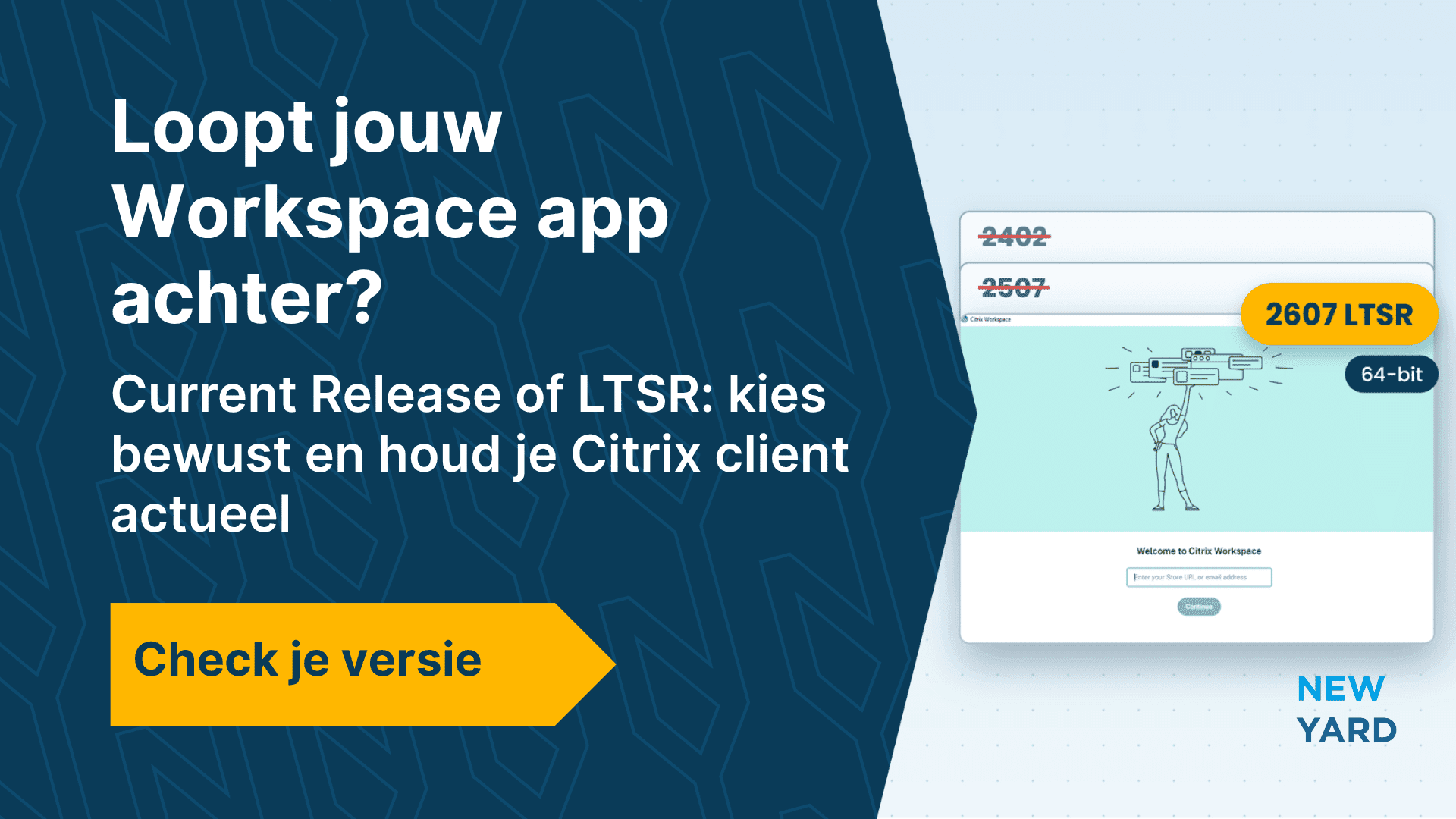
- 2402 LTSR: No longer supported; end of life on April 8, 2027.
- Citrix Workspace 2507 LTSR (2507.1): End of support as of September 2026; end of life on September 16, 2028.
- Citrix Workspace 2607 LTSR: released in September 2026, supported through September 2029.
(Source: citrix.com)
What strikes me is that many organizations have never made a conscious choice. They simply installed the version that was available on the download page at the time, and that’s still the version they’re running. That’s not a choice for stability—it’s procrastination. I prefer the Current Release, because it gives you the latest fixes and improvements. That only works if you update every quarter. If that’s not possible, then LTSR is better than a Current Release that’s been stagnant for a year. You can find out which versions your CVAD environment supports in our overview of Citrix CVAD 2607 LTSR.
What risks do you face if the Workspace app is out of date?
The biggest risk is that the client and the environment are no longer a good fit, causing functions to be lost or sessions to become unpredictable. That’s exactly what I observed with the client mentioned in the introduction.
- Compatibility: New VDA features, such as optimizations for Teams or new security settings, require a minimum client version. An outdated client will then fall back to less capable versions or may not work at all.
- Security: A client that has reached end of life no longer receives updates, including fixes for vulnerabilities.
- Support: Citrix only supports versions within the lifecycle. With an outdated client, every support request begins with the question of whether you’d like to upgrade first.
- Service desk noise: Issues caused by the client appear to be network or server problems. A lot of time is wasted looking in the wrong places.
There is another risk you need to plan for now. Citrix Workspace 2607 LTSR is the last LTSR to support 32-bit installations. Starting with 2707 LTSR, only a 64-bit version will be available. (Source: docs.citrix.com)
Do you use third-party plug-ins or virtual channels, such as those for scanners, signature pads, or telephony? These must be rebuilt for 64-bit; otherwise, they will no longer work after the migration. (Source: docs.citrix.com)
How can you roll out the Citrix Workspace app without any surprises?
When rolling out the Citrix Workspace app, it’s best to make a deliberate choice to use a single channel, along with a fixed installation command via your software distribution and an update setting that matches that channel. This way, you’ll always know which version is installed on which device.
1. Choose a channel and document it
If you can test and roll out a new version every quarter, choose “Current Release.” Automate that process; otherwise, you’ll fall behind again within a year. If that’s not possible, or if your environment requires a fixed version, choose 2607 LTSR. It’s supported through September 2029. That’s how we handled it for the customer mentioned in the introduction: upgrade to the latest LTSR once, then only install Cumulative Updates. If you’re on 2507.1 LTSR, you’re still supported, but you’ll no longer receive Cumulative Updates.
2. Install using a static command line
The installer accepts parameters that allow you to install everything without prompting for input. Here is an example for a managed workstation with a fixed store:
CitrixWorkspaceApp.exe /silent /includeSSON STORE0="Werkplek;https://werkplek.bedrijf.nl/Citrix/Store/discovery;on;Werkplek" ALLOWADDSTORE=S/silentInstalls without any screens or prompts./includeSSONimplements single sign-on so that users don’t have to log in again.STORE0Get the store ready in advance./CleanInstallRemoves remnants of previous versions. Useful for machines with a long history.
Install as an administrator, and the app will be placed in the Program Files folder on each device. If you install as a user, the app will be placed in the AppData folder for each profile, and those versions often won’t appear in your management tool. (Source: docs.citrix.com)
You can use the same command in Intune, Configuration Manager, or another tool. Preferably as part of automated patch management, so that deploying a new CU no longer requires manual intervention.
3. Ensure the automatic update follows the correct channel
A Citrix Workspace update can retrieve the app on its own. By default, it follows the Current Release channel, which is exactly right for a CR workspace. Using /AURolloutPriority and the settings in GACS, you can determine how quickly a new version is deployed. On an LTSR workspace, you only want LTSR versions. Via Group Policy, navigate to Computer Configuration > Administrative Templates > Citrix Components > Citrix Workspace > Workspace Updates and select “LTSR only.” You can also do this via the command line:
CitrixReceiverUpdater.exe /AutoUpdateCheck=auto /AutoUpdateStream=LTSR /AURolloutPriority=slowIf you prefer to roll out updates yourself through your software distribution, set ` /AutoUpdateCheck ` to `disabled`. Choose one path. Having two paths running side by side will eventually result in different versions. (Source: docs.citrix.com)
4. Plan the transition to the 64-bit Citrix Workspace app
Starting with version 2511, the 64-bit installer can directly replace a 32-bit installation. However, you must explicitly allow this via a Group Policy setting. Enable Virtual Channel Allow List Logging to see which virtual channels your users are using, and ask plug-in vendors for a 64-bit version in a timely manner. The plug-ins for Webex and Zoom will require manual configuration after the upgrade. (Source: docs.citrix.com)
What is the Global App Configuration Service, and do you need it?
The Global App Configuration Service (GACS) is a Citrix cloud portal that allows you to centrally manage the settings of the Workspace app for both managed and unmanaged devices. No cloud license is required for use with on-premises StoreFront. Citrix now refers to the service as Client App Management. (Source: docs.citrix.com)
Group Policy works only on managed Windows devices. A home computer, a MacBook, or an iPad will never receive those settings. GACS links the settings to your store’s URL. As soon as a user adds that store, the app retrieves the settings on any platform. Citrix lists more than 320 settings, ranging from updates and plug-ins to App Protection and HDX. (Source: citrix.com)
Does this also work with on-premises StoreFront?
Yes. You need a Citrix Cloud account, not a cloud subscription. Then, you claim the URL of your NetScaler Gateway or StoreFront and verify that it belongs to you. Verification takes about 15 minutes. Requirements include at least Workspace app 2405 on Windows and StoreFront 2203.0.3000.14. (Source: docs.citrix.com)
What do you need to know before you begin?
- Group Policy takes precedence. On Windows, GPO takes precedence over GACS, and GACS takes precedence over the registry. Therefore, an existing GPO setting will override whatever you configure in GACS.
- Patience. Windows clients retrieve the settings every six hours. You cannot force an immediate refresh.
- One store per device. On HTML5, ChromeOS, and mobile devices, only the most recently added store applies.
(Source: docs.citrix.com)
What I find to be the strongest feature: in GACS, you set a maximum allowed version, along with a start date and a period during which the update is rolled out. This ensures that even laptops outside the domain remain on the version you’ve tested. With a test and a production channel, you can first test changes on a small group.
What concerns do I hear about LTSR and GACS?
“LTSR is more secure because it’s more stable.” Not necessarily. An LTSR receives fixes via Cumulative Updates, but new improvements and support for new VDA features are released first in the Current Release. That’s why I prefer CR. LTSR is the right choice if you can’t keep up with the quarterly release cycle or if a vendor requires a fixed version.
“Current Release is too much work.” It is, if done manually. With a fixed installation script, a test group, and a rollout via GACS or your software distribution system, a quarterly update is largely automated.
“We just update manually when something comes up.” For the customer mentioned in the introduction, that was exactly the problem. Manual updates only happen once something has already gone wrong. A fixed update channel takes that pressure off. For this customer, that was LTSR, because the quarterly schedule wasn’t feasible.
“GACS is yet another cloud portal.” Fair point. If you only have Windows workstations in your domain, you can manage with Group Policy and the Citrix ADMX templates. As soon as you start managing Macs, home computers, or tablets, you have no other central location from which to control those devices.
“64-bit can wait until later.” That’s true—until 2707 LTSR is released. After that, the 32-bit version will no longer receive Cumulative Updates. Taking inventory of plug-ins takes time, so start that process now.
What checklist do you use for the Workspace app rollout?
- Identify which Workspace app versions are currently installed on your devices, including those outside the domain.
- For each group, specify: Current Release or LTSR. Choose CR if you can update quarterly; choose LTSR if that’s not possible.
- Check the lifecycle overview to see which client versions your CVAD or DaaS environment supports.
- Create a single installation command with fixed parameters and test it on a clean machine.
- Configure the update channel that matches your choice, or disable automatic updates if your software distribution handles this.
- Enable Virtual Channel Allow List Logging and create a list of third-party plug-ins.
- Ask those vendors about 64-bit support for the upgrade to 2707 LTSR.
- Configure GACS for your StoreFront or Gateway URL and remove any GPO settings that conflict with it.
- Schedule a time each quarter to test and roll out the latest Current Release or CU.
Who keeps your Workspace app up to date?
The Workspace app is small, but every user notices when it isn’t working right. In a previous article, I wrote about how often the client is overlooked. In practice, responsibility often falls between two teams: the workspace administrator rolls out software, the Citrix administrator manages the servers, and no one feels responsible for the client.
As a Citrix consultant, I help organizations with that decision and with the implementation—from choosing between Current Release and LTSR to automated deployment and setting up GACS. If you’d like to know the current state of your environment first, a health check is a good place to start.
Would you like to know where your Workspace app stands right now?
If you’d like a plan for rolling out the Citrix Workspace app, I’d be happy to help you figure it out. In a half-hour, no-obligation consultation, we’ll discuss which versions you currently have, which deployment channel is right for you, whether 32-bit plug-ins are causing any issues, and whether GACS makes sense for you. Afterward, you’ll know what the next step is.