
9 minutes
It’s early October, and many Remote Desktop Session Hosts are still running Office 2021. On October 13, 2026, Microsoft will stop providing all updates for that suite. On the same day, mainstream support for Windows Server 2022 will end, and with that, support for Microsoft 365 Apps on that operating system will also change.
What strikes me is that many organizations know something is coming to an end, but they don’t know exactly what. Is it Office? Is it the server? Or both? That confusion is understandable. These are two products with their own life cycles that just happen to reach a milestone in the same week.
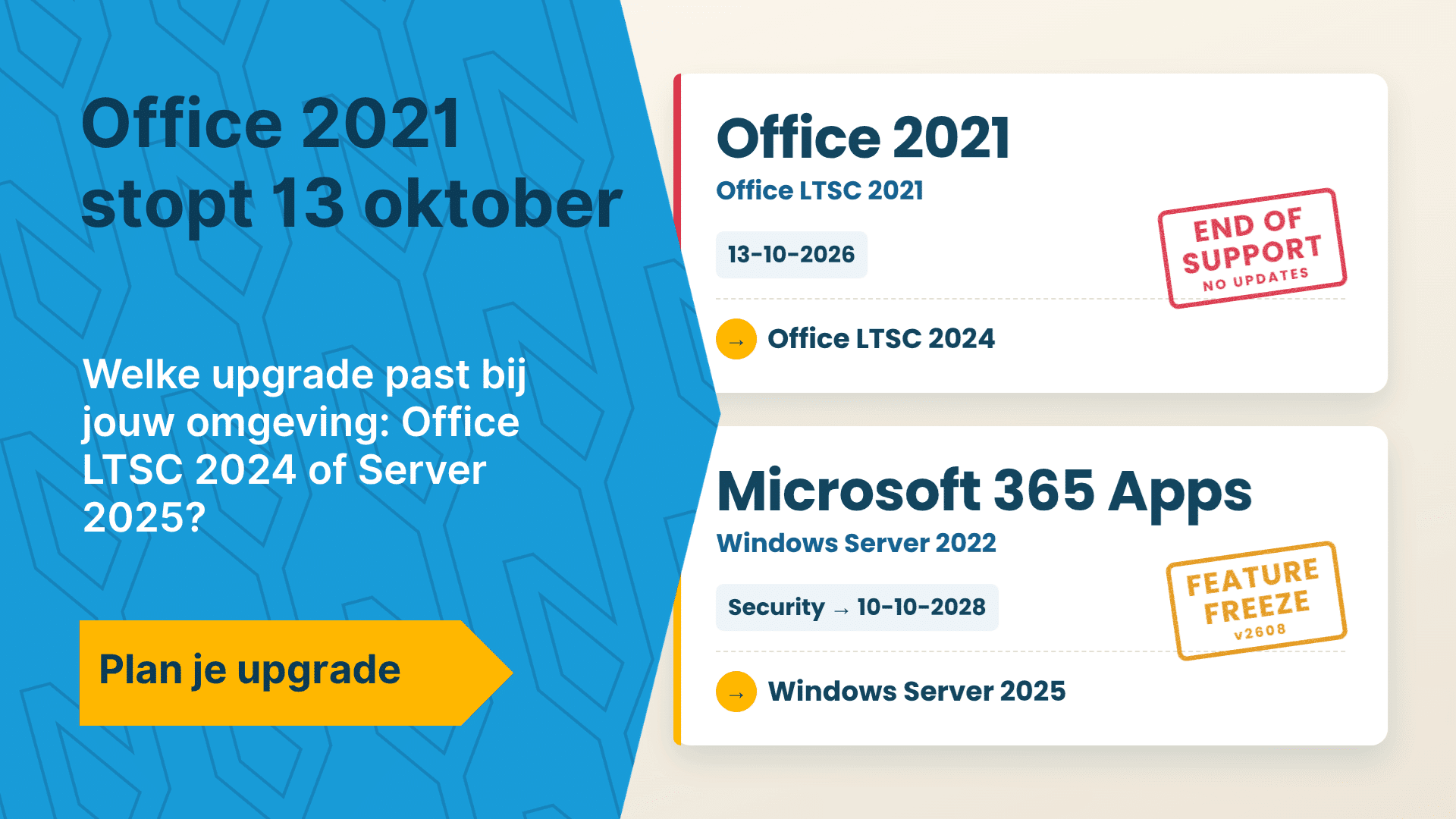
Short answer: Support for Office 2021 ends on October 13, 2026. After that date, Office 2021 will no longer receive security updates on any operating system. If you are using Office 2021, switch to Office LTSC 2024. If you’re using Microsoft 365 Apps on Windows Server 2022, plan to migrate to Windows Server 2025: after version 2608, you’ll no longer receive new features on Server 2022, and security updates will also end on October 10, 2028.
When does Office 2021 reach end of support, and what does that mean?
The end of support for Office 2021 is October 13, 2026. Office 2021 and Office LTSC 2021 are subject to Microsoft’s Fixed Lifecycle Policy, which does not include extended support. Once the end date passes, support ends immediately: no security updates, no bug fixes, and no technical support.
Source: learn.microsoft.com
The software will continue to launch as usual. That’s what makes it so insidious. Users won’t notice anything, while every new vulnerability in Word, Excel, or Outlook will remain unpatched from that point on.
Dozens of users work simultaneously on a Remote Desktop Session Host. A single malicious document can immediately affect all sessions on that server. That’s why an outdated version of Office on a server poses a greater risk than on an individual laptop.
Will Microsoft 365 Apps still work on Windows Server 2022?
Yes, Microsoft 365 Apps on Windows Server 2022 will continue to work, but with an expiration date. Microsoft will continue to provide feature updates for Server 2022 up to and including version 2608. After that, the installation will remain at that version, and only security updates will be provided until October 10, 2028.
Source: learn.microsoft.com
Microsoft itself explains why these security updates are still available: to give customers time to complete their migration to a supported configuration. It is a transitional measure. Microsoft also warns that new or modified features may not always work as expected on an unsupported operating system.
Are you still running Windows Server 2016 or 2019? If so, you’re already in that transition phase. As of October 14, 2025, both versions will no longer be supported for Microsoft 365 Apps. Windows Server 2025 is the only server version on which Microsoft 365 Apps is still fully supported.
Office LTSC 2024 or Windows Server 2025: Which is right for you?
The choice depends on what you’re currently using. These are two separate paths, and in practice, they’re often confused. The table below compares them side by side.
| Your situation | What’s holding you back? | My advice | Supported up to |
|---|---|---|---|
| Office 2021 on Windows Server 2019 or 2022 | All updates as of October 13, 2026 | Office LTSC 2024 | October 9, 2029 |
| Microsoft 365 Apps on Windows Server 2022 | Feature updates after version 2608, security updates on October 10, 2028 | Windows Server 2025 | Mainstream support through November 2029 |
| Microsoft 365 Apps on Windows Server 2016 or 2019 | End of support as of October 14, 2025 | Windows Server 2025 | Mainstream support through November 2029 |
Office LTSC 2024 is supported on Windows Server 2022 and Windows Server 2025. So if you’re using Office 2021, you don’t necessarily have to replace the server at the same time. Office LTSC 2024 has mainstream support through October 9, 2029. You can read about what’s changed in that version in the article about Office LTSC 2024.
Source: learn.microsoft.com
What risks do you face if you do nothing?
The biggest risk is a server running software without security updates, on which many users are working simultaneously. The consequences extend beyond just security.
- Security: New vulnerabilities in Office 2021 will no longer be patched after October 13, 2026. Macros, attachments, and linked files remain a common entry point for attackers.
- Compliance and Insurance: Auditors and cyber insurers are increasingly asking about supported software. A product that is out of support is a finding you’ll need to explain.
- Functionality: Microsoft 365 Apps on Server 2022 will be frozen at version 2608. New features and changes to existing features will no longer be added.
- Two versions running side by side: laptops with the latest Microsoft 365 Apps and a server with a frozen version. This leads to differences in behavior and additional support requests.
I’ve noticed that doing nothing is rarely a conscious choice. The session hosts are running, no one is complaining, and the end date fades into the background. You can see what else is coming to an end in the near future in the lifecycle overview and in the article on EOL and EOS risks in 2026.
What’s the best upgrade after Office 2021 and Server 2022?
My advice is simple. If you’re using Office 2021, upgrade to Office LTSC 2024. If you’re using Microsoft 365 Apps, upgrade to Windows Server 2025.
For Office 2021 users, Office LTSC 2024 is the easiest transition. It’s once again a one-time license, it runs on your existing Server 2022, and the interface is familiar. Please note: Publisher is no longer included in Office LTSC 2024. If anyone still uses it, please find an alternative first.
With Microsoft 365 Apps, the key lies in the operating system. You pay for a subscription that continuously delivers new features. On Server 2022, you won’t receive any of those after version 2608. Then you’ll be paying for something you don’t get.
With Windows Server 2025, you’ll be back on a supported platform, with mainstream support through November 2029 and extended support through November 2034.
Source: learn.microsoft.com
Set up new Remote Desktop Session Hosts on Windows Server 2025 and do not perform an in-place upgrade on existing servers. A clean installation prevents old settings, drivers, and leftover files from being carried over.
This is where Image as Code pays off. You define the configuration of a session host in scripts: the operating system, the roles, Office, the applications, and the settings. A pipeline then automatically uses this information to build a new image. If you want to switch to a newer operating system, you simply replace the base OS and run the same installation again.
It works the same way for Office. The transition from Office 2021 to Office LTSC 2024 involves changing just one installation step, while the rest of the setup remains the same. You’ll get an identical, documented session host every time, and the next upgrade will be much smaller. In Citrix and Parallels RAS environments, this aligns with how you already roll out images.
Why shouldn’t I wait until 2028?
Because a server upgrade in a shared workspace environment takes time, and you won’t have that time by 2028. Below are the objections I hear most often, along with an honest answer.
“Microsoft 365 Apps will still receive security updates through 2028, right?” That’s correct. So you have time when it comes to Microsoft 365 Apps on Windows Server 2022. An upgrade does, however, require testing, application review, and planning. Anyone who waits until 2028 to start will be under pressure.
“A new version of Windows Server costs money.” That’s true, too. You’ll need new server licenses, and for RDS, you’ll also need Remote Desktop CALs for version 2025, because they must be at least the same version as the session host. Compare that to a subscription that you’re currently only using halfway.
“Our applications haven’t been tested on Server 2025.” That’s a valid point—and exactly why you should start now. Ask your vendors for a support statement and test your most critical applications first on a separate session host.
“Office 2021 works just fine—why upgrade?” It works just fine until a vulnerability emerges that is no longer patched. Once Office 2021 reaches end of support, that’s only a matter of time.
How do you go about the transition in practice?
Start with an assessment and move from a pilot to production. Here’s the checklist I use myself:
- For each server, identify which version of Office and which version of Windows Server is running.
- Check your licenses. Office LTSC 2024 on a Remote Desktop Session Host requires a volume license. Microsoft 365 Apps requires a subscription with shared computer activation, such as Microsoft 365 Business Premium or E3.
- Check whether Publisher, legacy add-ins, or macros are still in use.
- Ask your application vendors about support for Windows Server 2025.
- Verify that your version of Citrix or Parallels RAS supports Windows Server 2025 as a session host.
- Upgrade the RDS license server and purchase CALs for version 2025.
- Build a new image and test it with a small pilot group.
- Phase out the old servers and then keep patch management up to date.
Who can help with the upgrade to Windows Server 2025?
New Yard helps organizations with 100 to 1,000 employees make exactly this transition. I build your Remote Desktop Session Hosts as code, ensuring that Windows Server 2025 with Office LTSC 2024 or Microsoft 365 Apps goes into production via a repeatable process. That automation remains yours: when the next version of Office or the next operating system is released, you simply adjust one step and rebuild.
I’ve been working as a Citrix consultant and with Parallels RAS and Remote Desktop Services for over fifteen years. You can read more about this approach on the page about automation. If you’re unsure about the path forward, I can help by providing a second opinion or conducting a health check.
Shall we work together to determine your upgrade path?
The end of support for Office 2021 is October 13, 2026. For Microsoft 365 Apps on Windows Server 2022, you have a little more time, but the clock is ticking there as well. Schedule a 30-minute, no-obligation introductory meeting at newyard.nl/contact. We’ll then take a look together at what’s running in your environment and determine the best next step for you.